
UpgradesGuide
What to check before upgrading your graphics card
Match the performance evidence to your display, then verify the card will fit and receive the power it needs.
By The PC Journal6 min read
Step 01
Define the target
Write down the games or applications, resolution, settings and refresh target behind the upgrade. These details make third-party performance results relevant to your system.
Step 02
Read comparable tests
Look for clearly attributed tests with a stated CPU, GPU, memory setup, game or application, resolution and settings. Check whether upscaling or frame generation was enabled. Do not treat VRAM capacity alone as a speed ranking.
Step 03
Measure the case
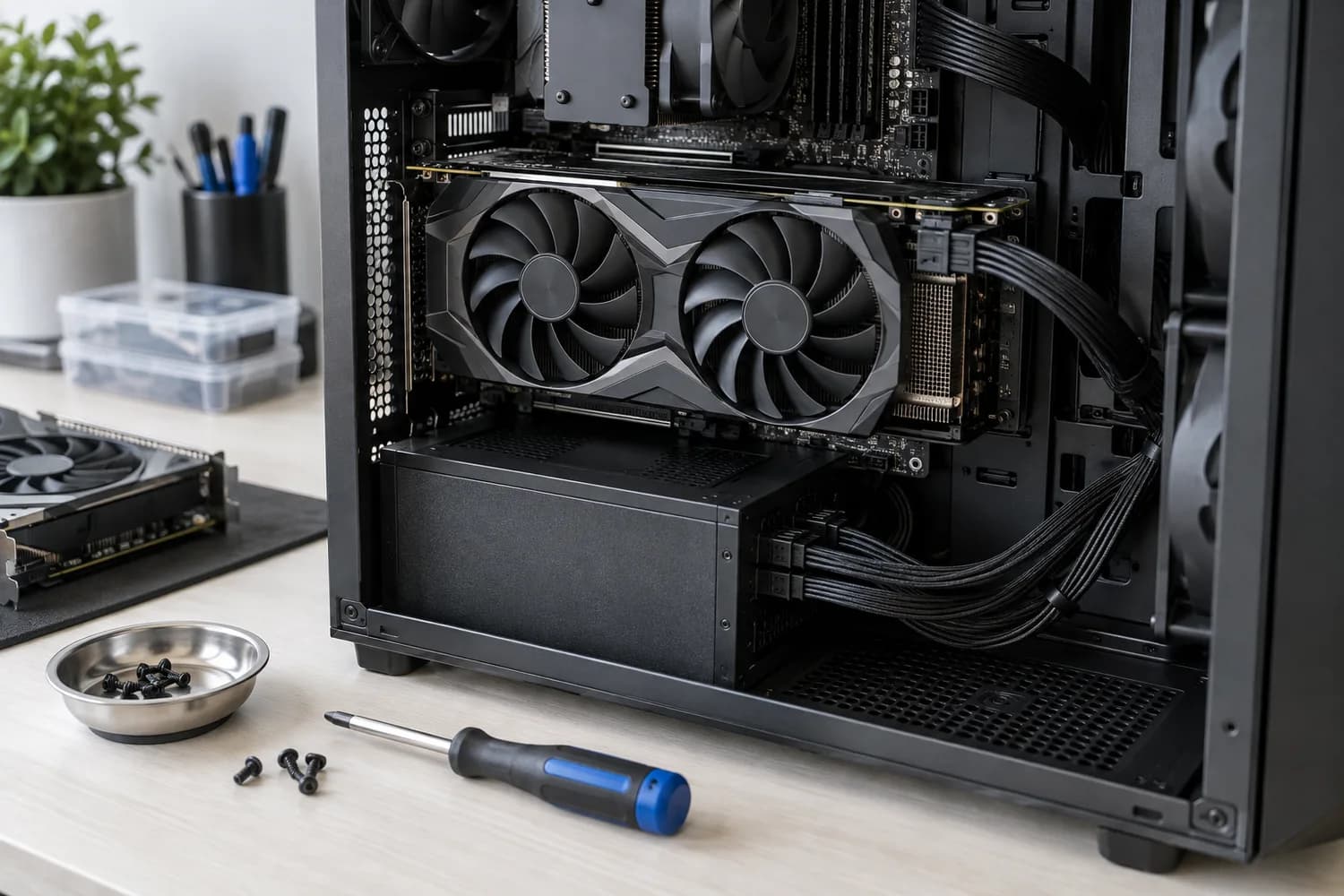
Use the exact graphics card dimensions and case clearance documentation. Confirm length, thickness, adjacent slot space and any front radiator or drive-cage interference.
Step 04
Verify power and outputs
Check the power supply model, its actual connectors and the card manufacturer's requirements. Confirm the display outputs and cable standard you need for your monitor.
Step 05
Consider the whole system
A faster card may not solve a workload limited elsewhere. Compare the full upgrade cost, including a power supply or case change if either is required.
This guide explains a decision process. It does not contain product rankings, benchmark results or hands-on measurements. How we research
Related guides
Upgrades
Which PC upgrade should you make first?Record your current parts and the slowdown you see first, so the upgrade you buy addresses the real limit.
Components
How to choose a power supply for a PC buildConfirm form factor, case length and the exact connectors your motherboard and graphics card require.
Monitors
How to choose a monitor for your PCMatch size and resolution to your desk, then confirm your graphics outputs support the refresh rate you want.